Version Number: v1.0.1
Published Date: 14 Oct 2026
____________________________________________________________________________
The Assessment page is accessible to all roles and has three main sections, the Metadata section, the App section and the Net section.
The assessments page was released in August 2026, not all assessments are currently compatible with presenting in this format. We are working on support for all assessment types.
Assessment data from before this date will not be made available in the assessment page.
Metadata section
The Metadata section gives you a summary of the assessment:
- Status — the current stage of the assessment, for example scanning, validating or committed.
- Dates — the dates the assessment was active. Hover over the dates for more detail.
- Vulnerabilities — the number reported by the assessment, including how many were new, how many ended up being closed, and the total reported.

App section
The App section displays the sitemap for the assessment. It is populated as the scan runs and is kept for 12 months.
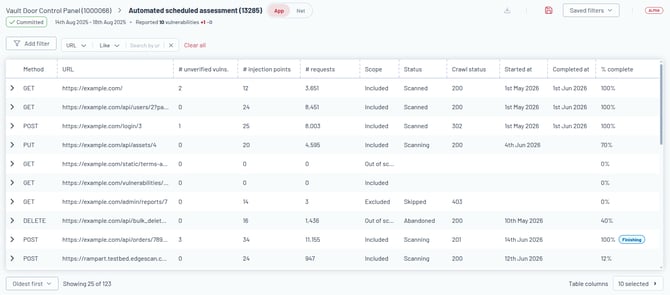
For each URL, the page shows statistics including:
- How many requests were made.
- How many unverified vulnerabilities were reported. An unverified vulnerability is one the scanner reported but that may not appear in your final report, because each vulnerability first goes through manual verification. It may be combined with other similar vulnerabilities, or marked as a false positive.

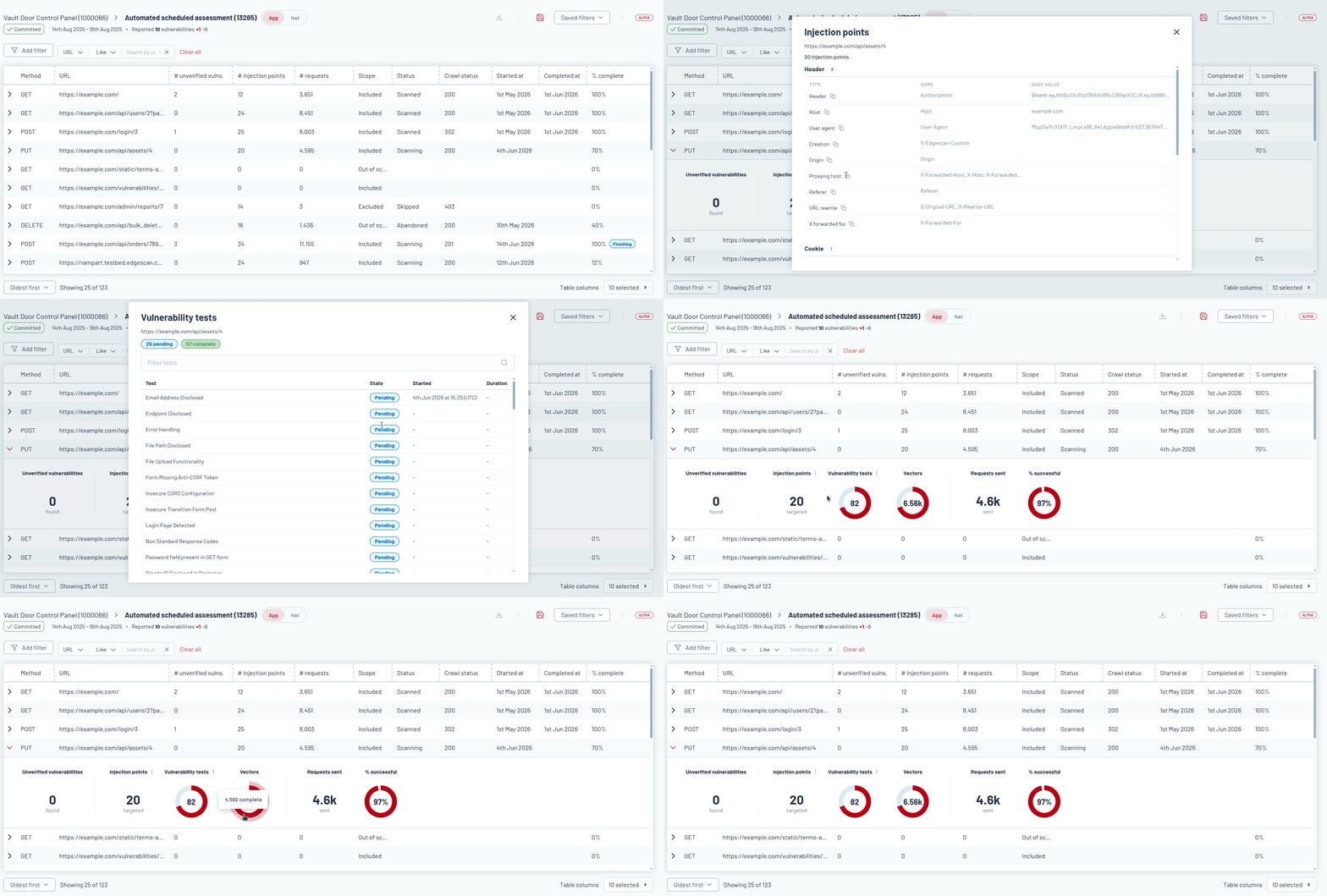
The sitemap also shows more detail about which injection points and vulnerability tests were used. While the scan is running, these numbers increase and the donuts fill up, giving you a sense of how close the scan is to finishing with a specific URL.
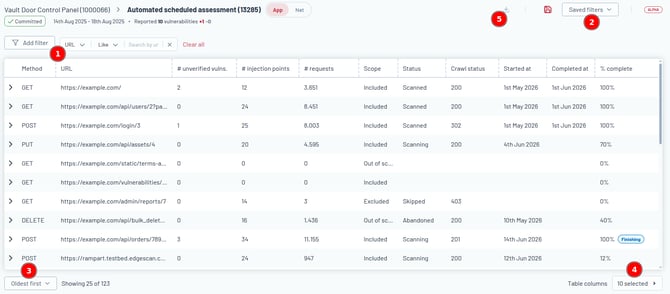
You can also:
- Filter the sitemap.
- Save filters for reuse.
- Sort the data.
- Enable and disable columns.
- Export all of the data to CSV.
Net section
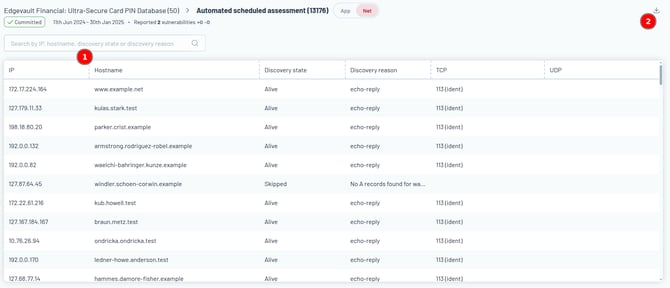
The Net section shows all the locations the net scanner touched. It becomes available once the net scanner has fully completed.
For each item, it displays:
- The IP address and hostname.
- The state it was found in.
- Which ports were open.
You can filter the list and export it.