
Version Number: v1.0.1
Published Date: 09 Dec 2025
____________________________________________________________________________
When to Assign Roles
Roles should be assigned:
-
During user creation to ensure immediate access to the right features.
-
When responsibilities change, such as promotions or team shifts.
-
To combine access needs, for example, giving a user both Asset Configurator and Scan Viewer roles.
Assigning Roles During User Creation
-
Navigate to User Management in the Edgescan platform.
-
Click Create User.
-
Enter the user’s details (name, email, etc.).
-
In the Roles section, select one or more roles:
-
Use checkboxes to assign multiple roles if needed.
-
-
Save the user profile.
Assigning Roles to Users
To assign a role:
- Navigate to the user’s detail page.
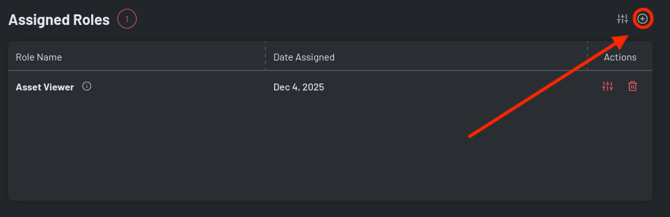
- In the Assigned Roles section, click "+" to add a new roles
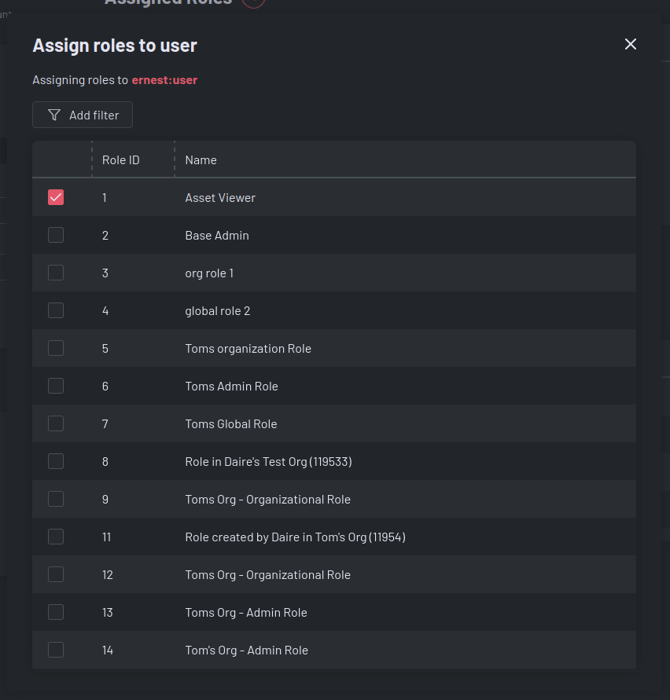
- In the Assign Roles modal:
-
- Browse available roles.
- Use search to filter roles.
- Toggle checkboxes to assign/unassign roles.
- Changes are saved immediately when toggling roles.
Alternative Method:
- Use the Direct Permissions section:
- Click the "+" button in the Direct Permissions section.
- Select the Role tab.
- Browse and assign roles using the same interface.
Immediate Effect:
- User gains all permissions from the assigned role.
- Resolved Permissions table updates automatically.
Removing Roles from Users
To remove a role:
- In the Assigned Roles table, click the Trash icon next to the role.
- Confirm removal in the dialog.
Impact:
- User loses all permissions associated with the removed role.
- Other assigned roles remain unaffected.