
Version Number: v1.0.0
Published Date: 3 Sept 2026
____________________________________________________________________________
What is a limited token?
An API token authenticates as you. Until now that was the whole story: any token could do anything your account could do, so a script that only needed to read vulnerability counts held a key that could also delete an asset.
A limited token carries an allowlist. When you create it you tick the exact resource-and-action pairs it may use: asset / view, insight / create, and so on, and everything you did not tick is unavailable to that token, even though your own account still holds it.
| FULL TOKEN | LIMITED TOKEN | |
| Permissions | Everything your account can do, always | Only the pairs you ticked, and only while you still hold them |
| Which organisations and assets | Whatever your account can see | Whatever your account can see — unchanged |
| Created by | The Create Standard button | The Create Advanced button |
| Shown in your token list as | Type Full | Type Limited |
Nothing about existing tokens changed. A token you created before this feature existed is a Full token and keeps working exactly as it did.
When to use a limited token
- Reporting and dashboards. A script that pulls vulnerabilities, assets or insights into a spreadsheet or BI tool needs
viewand nothing else. Tick the resources it reads, press Read only, done. - CI and build pipelines. A token stored in a build system is a token stored somewhere you do not fully control. Limiting it caps the damage if the secret leaks.
- A single-purpose integration. A ticketing sync that creates and edits nothing but retest requests should not also be able to change scan configuration.
- Anything you hand to a tool or an agent. If something other than you is going to hold the key, give it the narrowest key that still does the job.
Use a Full token when the task requires your full account permissions, e.g. a bulk change across many resource types, or an automation you are still exploring and do not yet want to pin down.
Creating a limited token.
- Open Account settings in the portal and scroll to the API tokens section.
- Press Create Advanced. The Create a limited API token window opens with a grid of every permission you hold, all ticked.

- Give the token a required label, and the only way you will recognise it later. Optionally, but recommended, tick Expires and pick a date and time.
- Narrow the grid. Press Read only to strip every action except view from what is currently selected, or untick individual boxes. Restore permissions puts everything back if you go too far. The running count above the grid reads “N permissions, M removed” so you can see how narrow you have made it.
- Press Create. The token value appears once, with a copy button.
THE TOKEN IS SHOWN ONCE
Edgescan stores only a hash of the token, never the value itself. Copy it out of that window and into your secret store before you close it, it cannot be shown again, and a token you have lost the value for can only be deleted and replaced.
The inline Create Standard button beside the label field still exists and still makes a Full token. Only the Advanced window creates a limited one.
Reading the permission grid
The grid has one row per resource you hold permissions on. The four common actions, view, edit, create, delete, get their own columns; any finer-grained permissions a resource has appear as labelled checkboxes in Other.
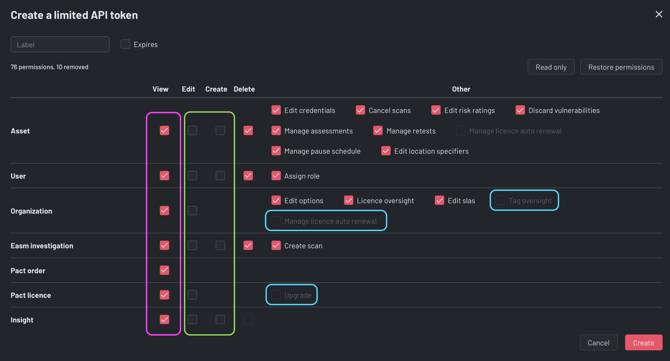
- Purple box
Ticked = the token may do this. - Green box
Not ticked/greyed out = the token is not allowed to do this. - Blue box
Unavailable = not a permission available to select for this token.
Three behaviours worth knowing
- You cannot tick what you do not hold. Boxes for permissions your account lacks are greyed out and inert. The grid can only ever narrow.
- View before edit. The other boxes in a row stay disabled until View is ticked, and unticking View clears the whole row. Editing something you cannot read is not a useful token.
- Ticking nothing is allowed. A limited token with an empty allowlist authenticates successfully and is then refused on every request. That is occasionally useful for testing, and confusing if you did it by accident.
Using the token
A limited token is presented exactly like any other Edgescan API token. The value ends in a pipe and a number (…|482) — that is part of the token, so send it whole.
Either send it in the X-API-TOKEN header:
curl -H "X-API-TOKEN: kM3s…q7|482" \ https://<your-edgescan-host>/api/v1/assets.jsonor as the password half of HTTP Basic authentication (the username is ignored):
curl -u "api:kM3s…q7|482" \ https://<your-edgescan-host>/api/v1/assets.jsonEverything else, endpoints, filters, paging, rate limits, behaves the same as it does with a Full token. The only difference is what comes back when the token reaches for something it was not given.
What the token can do
The allowlist is not checked once at creation and then trusted. It is applied on every single request, against your permissions as they are at that moment.
THE RULE OF LEAST PRIVILEGE
A limited token can do what you selected provided your account currently holds that permission, never more.
Both sides must agree. Anything explicitly denied to you stays denied regardless of the token.
Three consequences follow from that, and they are in the security model:
- A token can never outgrow you. Grant yourself a new permission tomorrow and yesterday's limited token still cannot use it, it is not on the allowlist.
- A token shrinks when you do. If a permission is taken away from your account, every token of yours loses it the moment it is removed. There is no stale copy to revoke.
- Denials always win. A permission explicitly denied to you cannot be re-opened by ticking a box.
WHAT LIMITING DOES NOT CHANGE
The allowlist covers actions, not reach. A token with asset / view can view every asset your account can view. It is not yet possible to restrict a token to one organisation or one asset, see Current Limits below.
Checking a token's access
To see what a token can actually do, ask the API using that token. The effective-permissions endpoint answers for the caller, so a limited token gets back its own narrowed set rather than your full one:
curl -H "X-API-TOKEN: kM3s…q7|482" \ https://<your-edgescan-host>/api/v1/users/self/permissions/effective_index.jsonThis is the quickest way to confirm a token is as narrow as you meant it to be, and the quickest way to diagnose a script that started returning 403: compare what the token reports against what the script needs.
Managing your tokens
View API tokens in the same account section lists everything you hold: label, a Type column reading Full or Limited, the expiry (or Never), when the token was last used (or Never used), and a delete button.
PERMISSIONS ARE FIXED AT CREATION
A token's allowlist cannot be edited afterwards, and a Full token cannot be converted to a limited one. To change what a token can do, create the replacement, move your scripts over, then delete the old token.
Deleting a token takes effect immediately and cannot be undone. An expired token is discarded the next time it is presented, so nothing needs cleaning up by hand.
Troubleshooting
| WHAT YOU SEE | WHAT IT MEANS | WHAT TO DO |
|---|---|---|
403 on a request that used to work |
The action is outside the token's allowlist, or the permission has since been removed from your account. | Call the effective-permissions endpoint with the token. If the permission is missing from your own account, that is the cause; otherwise create a replacement token that includes it. |
401 / authentication failed |
Not a permissions problem. The value is wrong, truncated, or the token has expired or been deleted. | Check the value was copied whole, including the |number suffix. If it is gone from your token list, it expired or was deleted, create a new one. |
| A list returns fewer rows than expected, rather than an error | Row visibility is worked out from the same narrowed permission set, so an endpoint that also reads a related resource can quietly filter results. | Run the identical request with a Full token. If that returns the missing rows, the limited token needs view ticked on the related resource. |
| Creation refused: “Token permissions must be a subset of your own permissions” | The request asked for a permission you do not hold. From the portal grid this is rare, it usually means your permissions changed while the window was open. | Reload the portal and build the token again. |
| Every request refused with a brand-new token | The allowlist is empty, the grid was cleared before Create. |
Delete it and create another, ticking what the token needs. |
Current limits
- Actions only, not scope. A limited token cannot yet be pinned to specific organisations or assets. Narrowing by scope is planned; today the token's reach is your account's reach.
- Created in the portal only. Limited tokens are created from Account settings while signed in. There is no API call that mints one.
- No editing. Allowlists are immutable, replace, don't amend.
- Your own permissions are unaffected. Nothing you do in the grid changes what you can do in the portal. It only ever describes a token.
If a token needs a permission you do not hold yourself, that is a permissions request for whoever administers your organisation, the grid cannot grant it.