
Version Number: v1.0.1
Published Date: 09 Dec 2025
____________________________________________________________________________
What Are Direct Permissions?
Direct Permissions are individual, granular permissions that can be applied to a user account. While roles provide a simplified way to manage access, Direct Permissions give you precise control over:
-
Specific actions (e.g., view, edit, create, delete)
-
Specific resources (e.g., assets, scans, vulnerabilities)
-
Specific scopes (e.g., organization-wide or limited to certain assets)
Important Notes
Direct permissions take precedence over role permissions.
Denials override grants from any role.
Adding Direct Permissions
To add a direct permission:
- Navigate to the user’s detail page.
- In the Resolved Permissions section, click + Add Direct Permission.
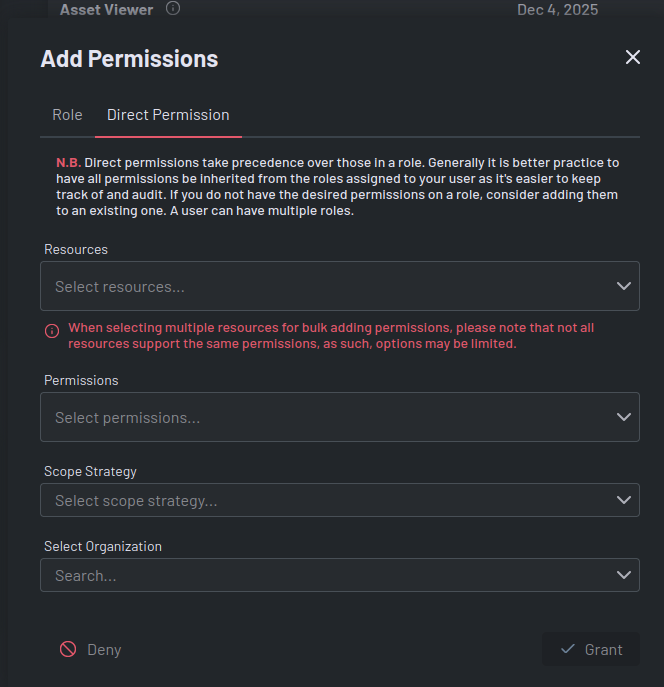
- In the modal:
- Select Resource(s): Choose one or more resources (e.g., Asset, Vulnerability).
- Select Permission(s): Actions such as View, Create, Edit, Delete.
- Select Scope Strategy: Define the permission scope
- Relative: User’s Organization: Applies to the user’s organization.
- Specific: Resource: Applies to a specific resource instance.
- Grant or Deny the selected permissions.
- Click Apply.
Best Practice Reminder
Direct permissions take precedence over those in a role. Generally, it is better practice to have all permissions inherited from roles assigned to your user as it’s easier to keep track of and audit.